
In today’s oversaturated inboxes, getting your email noticed — let alone opened — is no easy feat. In this article, we’ll explore the power of video in email campaigns, how to embed video content the right way, best practices to maximise performance, and how to track your results. Whether you’re a startup, marketer, or creative agency, using video in your emails can be a game-changer for audience retention and conversions.
What Is Video Accessibility?
Video accessibility is the practice of making video content easier for people with different abilities and circumstances to watch, hear and understand.
That can include people who are:
- Deaf or hard of hearing
- Blind or have low vision
- Neurodivergent
- Living with cognitive or learning disabilities
- Using assistive technology
- Watching without sound
- Watching in a noisy environment
- Watching in a second language
Accessibility is not one single feature.
Captions, transcripts, audio descriptions, clear visual design, readable on-screen text and understandable language can all play a role.
For a corporate video, accessibility might mean adding accurate captions to an interview, making important visual information available through audio or a transcript, ensuring text on screen can be read clearly, and structuring the video so the message does not depend entirely on one sense.
The aim is simple:
Don't make important information available in only one way when it can reasonably be communicated in more than one.

Why Does Video Accessibility Matter for Businesses?
There is an obvious inclusion argument for accessible video, but there is also a practical business reason.
Your video may be watched by people in very different circumstances.
Someone may be sitting on a train without headphones.
A potential customer may watch a LinkedIn video with the sound turned off.
An employee may need to access training content with captions.
A prospect with hearing loss may rely on subtitles to understand an interview.
A visually impaired viewer may need audio description or an alternative way of accessing important visual information.
If your video depends entirely on spoken dialogue, background audio or visual graphics, some viewers may miss important parts of the message.
Accessibility can therefore improve the overall usefulness of the content.
It can also make your videos easier to reuse across websites, social media, internal communications, training and sales.
The goal isn't to create a completely different video for every audience.
It is to build accessibility into the content from the beginning.
Captions and Subtitles: What's the Difference?
The terms "captions" and "subtitles" are often used interchangeably, but they can serve slightly different purposes.
Subtitles generally provide a written version or translation of spoken dialogue.
Captions can provide dialogue as well as relevant information about other audio.
For example:
[Door closes]
[Machine starts]
[Phone ringing]
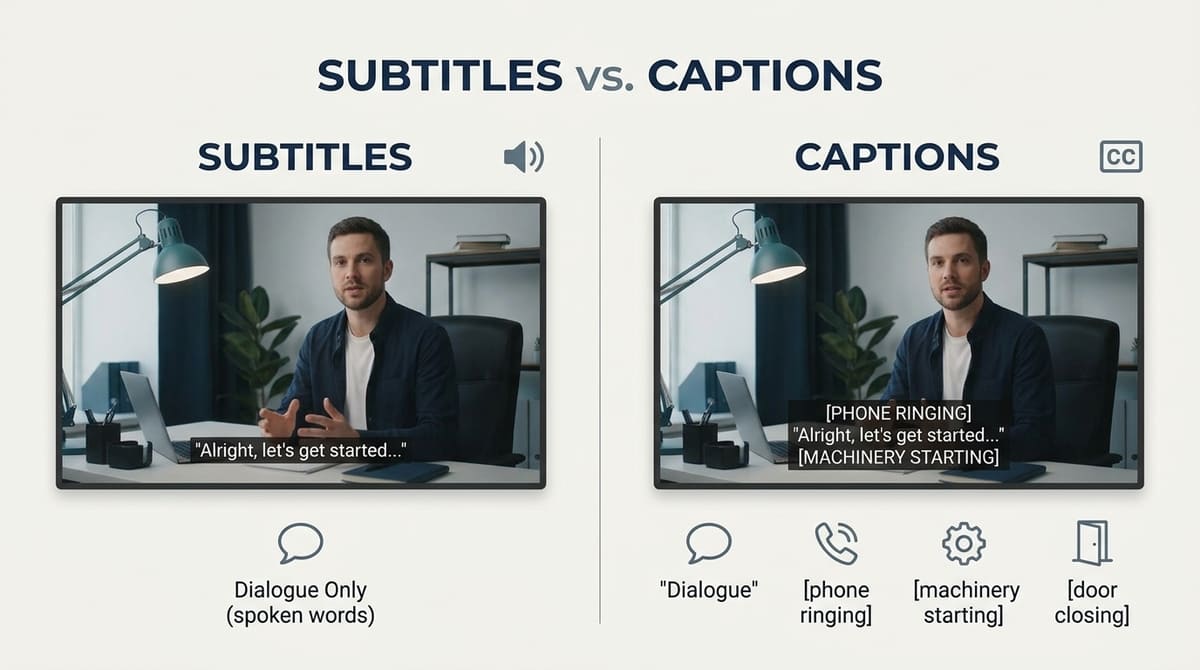
That additional information can matter to someone who cannot hear the soundtrack.
For prerecorded video with meaningful audio, WCAG 2.2 includes captions as a Level A success criterion.
For businesses, accurate captions are particularly useful for:
- Corporate interviews
- Social media videos
- Recruitment videos
- Training videos
- Product demonstrations
- Customer testimonials
- Event recordings
- Explainer videos
- Sales presentations
But simply turning on automatic captions is not enough.
Why Automatic Captions Still Need Checking
Automatic transcription has become extremely useful for video production.
It can save time and provide a strong starting point.
But automated captions can still misunderstand:
- Names
- Company names
- Technical terminology
- Irish accents
- Industry-specific language
- Numbers
- Acronyms
- Places
- Product names
One incorrect word can completely change the meaning of a sentence.
Imagine an engineer explaining a technical process while the captions replace an important component name with an unrelated word.
The video may look polished, but the information is now wrong.
That is why captions should be reviewed before publication.
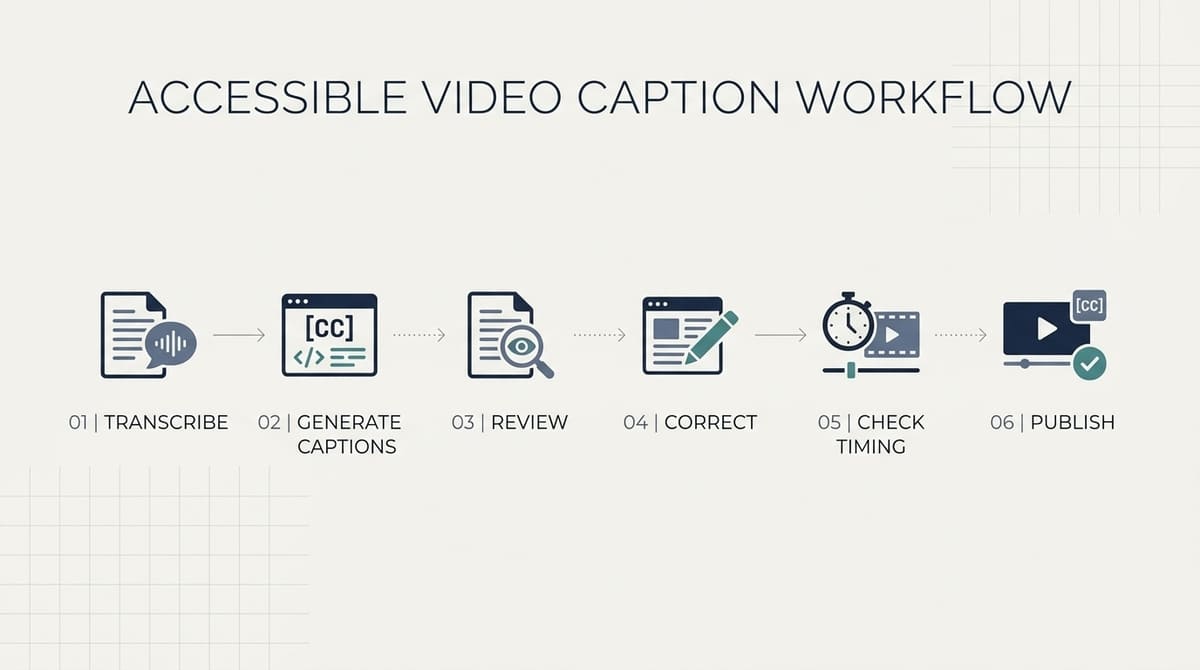
A useful accessibility workflow is:
Transcribe → generate captions → review → correct → check timing → publish.
Accuracy matters just as much as having captions in the first place.
Captions Should Be Designed, Not Just Added
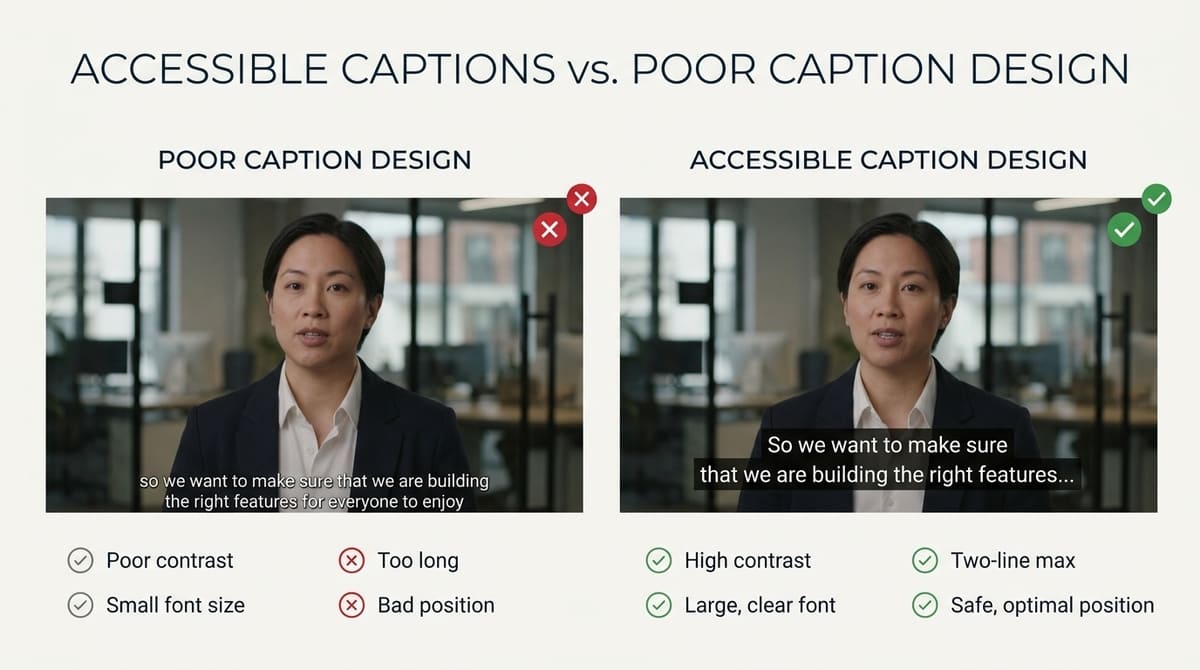
Accessibility is not only about whether captions exist.
They also need to be readable.
Think about:
- Font size
- Contrast
- Position
- Line length
- Timing
- Backgrounds
- Speaker identification
- Punctuation
- Important sound information
Captions should not disappear into a busy background.
They should not cover important product demonstrations or on-screen graphics.
They should not appear so quickly that viewers cannot read them.
And they should not be so large that they obscure the subject of the video.
This is where accessibility becomes part of production design rather than an editing afterthought.
A good video team should think about where captions will sit while planning the frame.
Transcripts Can Make Video Content More Accessible
A transcript is a written version of the video's spoken content.
For some audiences, a transcript can provide an easier way to consume the information.
It can also be useful for people who prefer reading to watching.
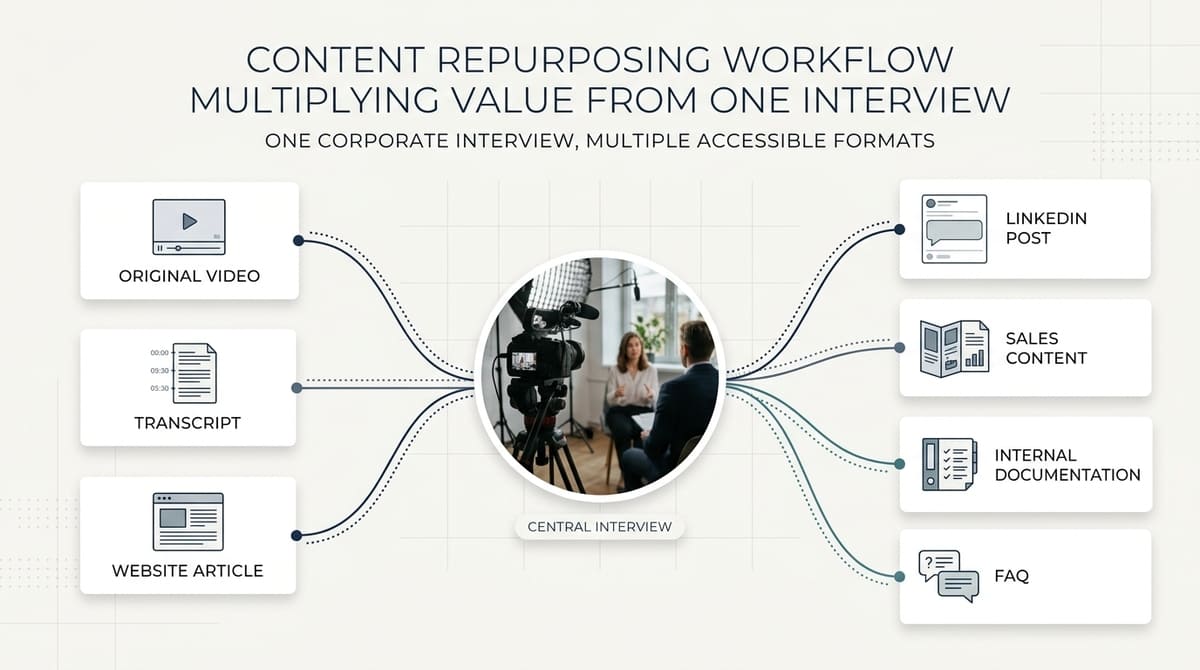
For businesses, transcripts have another advantage: they can turn video into a reusable written asset.
A corporate interview could become:
- A video
- A transcript
- A website article
- LinkedIn posts
- Sales content
- Internal documentation
- Frequently asked questions
This means accessibility can support content efficiency as well as inclusion.
A transcript should still be accurate and clearly associated with the relevant video.
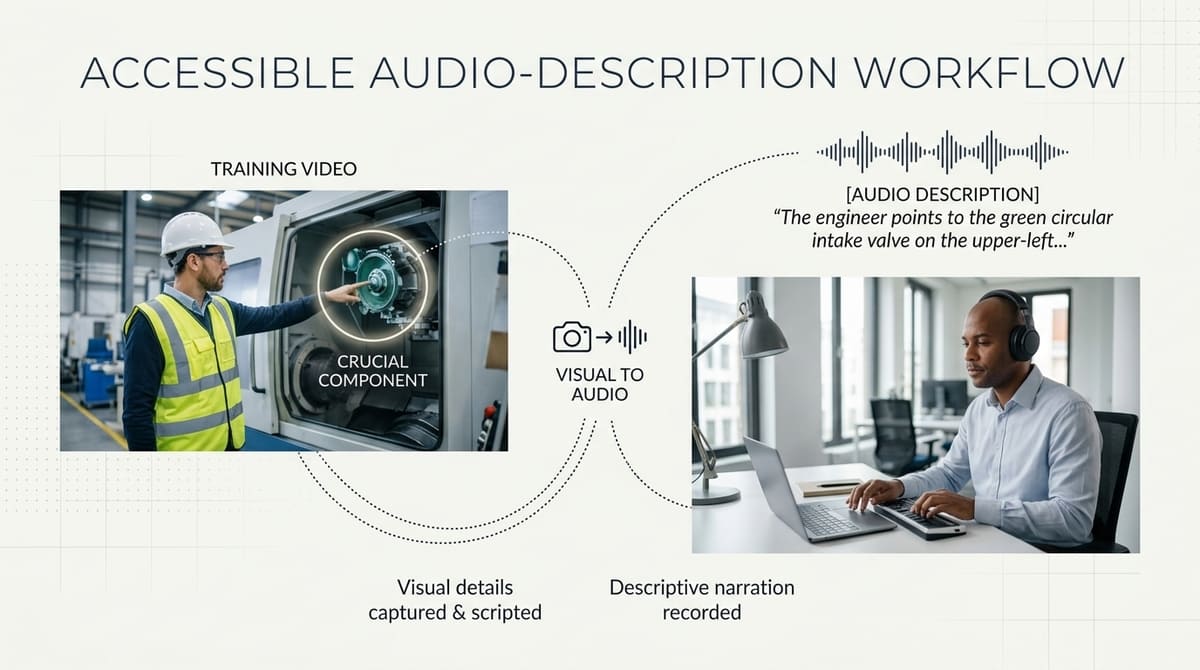
What Is Audio Description?
Captions help people access the audio information in a video.
Audio description addresses an important part of the visual information.
It provides spoken descriptions of visual details that are necessary to understand what is happening.
For example, imagine a video where an engineer explains a machine while a critical component is shown on screen.
If the engineer says:
"Here's the component we're talking about."
but does not explain what the viewer is seeing, someone who cannot see the screen may miss part of the explanation.
Audio description could communicate the relevant visual information through narration.
W3C defines audio description as narration added to communicate important visual details that cannot be understood from the main soundtrack.
Under WCAG 2.2, audio description for prerecorded video is a Level AA success criterion in the relevant circumstances.
Not every video requires extensive audio description.
The key question is:
Does the viewer need the visual information to understand the message?
If the important information is already fully communicated through the spoken audio, additional description may not be necessary.
Accessibility Starts Before Filming
One of the easiest mistakes is treating accessibility as something that happens during post-production.
By then, some decisions are already difficult or expensive to change.
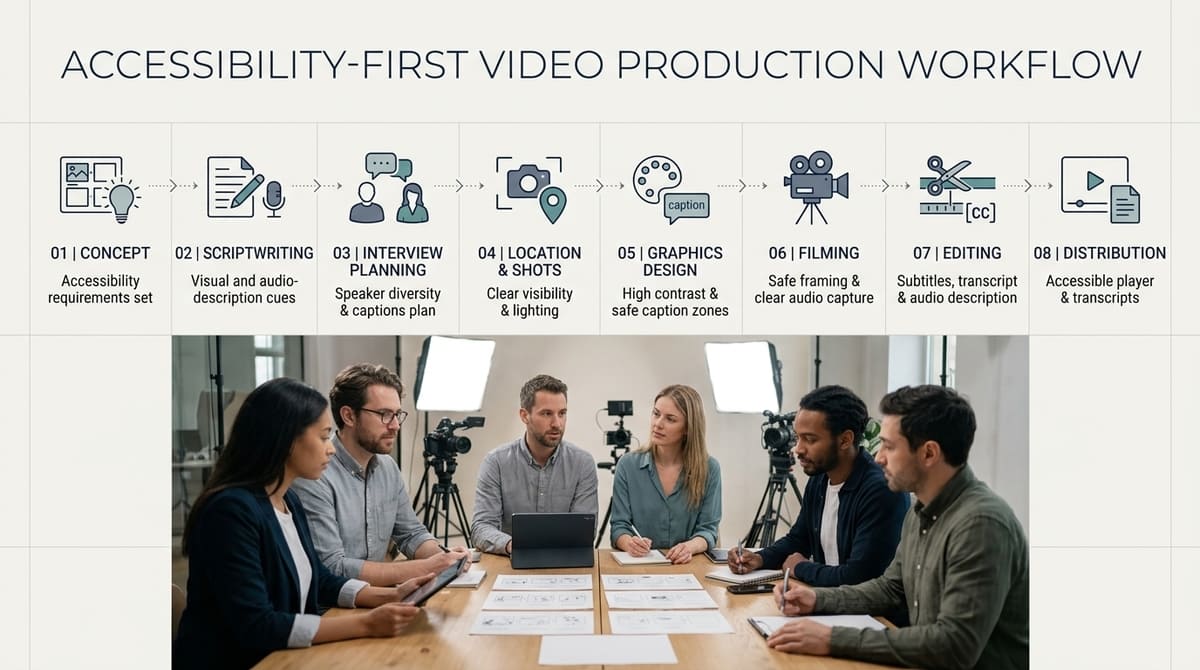
Accessibility can be considered during:
- Concept development
- Scriptwriting
- Interview planning
- Location selection
- Shot planning
- Graphics design
- Filming
- Editing
- Distribution
For example, if an important part of the message is communicated only through a graphic, the production team can plan an accompanying spoken explanation.
If captions are going to be used, the composition can leave enough space for them.
If audio description may be required, the edit can leave natural pauses where additional information can be introduced.
W3C specifically recommends considering description when video is being planned and produced because doing so can reduce the effort required later.
Make On-Screen Text Easier to Read
Corporate videos often contain more text than they need.
Titles.
Statistics.
Names.
Charts.
Product specifications.
Website addresses.
Calls to action.
If this information is too small, too brief or poorly contrasted, viewers may struggle to read it.
Keep important text:
- Large enough to read
- On screen long enough to process
- Visually separated from the background
- Clear rather than decorative
- Consistent throughout the video
This matters particularly when videos are viewed on mobile devices.
A graphic that looks perfectly readable on an editor's large monitor may be difficult to read on a phone.
The same principle applies to charts and diagrams.
If the viewer needs to understand a chart to follow the argument, don't assume that simply displaying it for two seconds is enough.
Don't Put Important Information Only in Graphics
Imagine a video explaining the results of a project.
The narrator says:
"We reduced processing time significantly."
Then a graphic appears showing the exact percentage.
If that number is important to understanding the claim, consider also communicating it through spoken audio or an accessible text alternative.
The more important the information, the less you should rely on only one communication method.
This is particularly important for:
- Statistics
- Product specifications
- Instructions
- Process diagrams
- Charts
- Prices
- Dates
- Contact information
- Key conclusions
A good rule is:
If removing the graphic would make the message incomplete, think about another way the viewer can access that information.
Use Clear Language
Accessibility isn't only about technical features.
The language itself matters.
Corporate videos can become difficult to follow when speakers use:
- Long sentences
- Excessive jargon
- Unexplained acronyms
- Dense technical terminology
- Corporate clichés
- Vague statements
This doesn't mean technical businesses need to remove technical language.
It means important terminology should be explained when the audience may not already understand it.
For example, an engineering company can use the correct technical term while briefly explaining what it means.
A software company can introduce an acronym before repeatedly using it.
A professional services firm can explain a complex process in stages rather than delivering one long explanation.
Clear communication benefits everyone, not only people with accessibility needs.
Consider Accessibility When Filming Interviews
Interviews are common in corporate and B2B video.
A few production decisions can make them more accessible.
Make sure the speaker is clearly visible.
Avoid distracting backgrounds.
Record clean audio.
Give the speaker enough time to finish their thought.
Avoid talking over people unnecessarily.
If multiple people are speaking, make it clear who is talking through the edit and captions.
Good audio is particularly important.
Even when captions are provided, poor sound can make the original video uncomfortable or difficult to follow.
For Irish businesses we've worked with, we've found that giving interview subjects enough time to answer properly often improves the final content anyway. The result is usually clearer, more natural and easier to edit into an understandable sequence.
Accessibility and good production often reinforce each other.
Accessibility for Social Media Videos

Social media creates its own accessibility challenges.
Videos may autoplay without sound.
People may watch them in public.
The screen may be small.
The viewer may encounter the video without any context.
That makes captions particularly valuable.
But don't assume that adding captions solves everything.
Consider:
- Is the opening understandable without sound?
- Can the captions be read on a phone?
- Does the video rely on visual information that isn't explained?
- Is important text hidden behind platform interface elements?
- Does the video still make sense when viewed quickly?
- Is the message understandable without relying entirely on music or sound effects?
A short social clip should communicate its main idea clearly even when the viewing environment is less than ideal.
Accessibility for Corporate and Training Videos
Accessibility becomes particularly important when video is used internally.
Training content may be watched by employees with different needs, in different environments and at different times.
A training video may need:
- Accurate captions
- Transcripts
- Clear instructions
- Accessible supporting documents
- Audio description where visual information is essential
- Logical structure
- Clear navigation
This can also make the content more useful to employees who simply prefer different ways of learning.
A transcript, for example, can make it easier to quickly find a specific instruction without watching an entire 20-minute video.
What About Video Accessibility and WCAG?
WCAG, or the Web Content Accessibility Guidelines, provides internationally recognised guidance for making web content more accessible.
For video, WCAG 2.2 includes requirements covering areas such as prerecorded captions, alternatives or audio description for prerecorded media, live captions and prerecorded audio description.
However, businesses should avoid treating a blog checklist as a substitute for proper accessibility advice.
The exact requirements can depend on:
- The type of organisation
- The country or jurisdiction
- The website
- The type of content
- Whether the video is live or prerecorded
- How the video is being used
If your organisation has specific legal or regulatory obligations, get appropriate professional advice.
For production purposes, though, WCAG provides a useful framework for asking better questions about how people will access your content.
Build Accessibility Into Your Video Production Workflow
The easiest way to make accessibility manageable is to include it in the normal production process.
Before filming
Identify the audience and how they are likely to consume the video.
Decide whether captions, transcripts or audio description may be needed.
Plan graphics and on-screen text with readability in mind.
During filming
Capture clean audio.
Frame subjects clearly.
Avoid unnecessary visual clutter.
Make important information understandable through the spoken content where possible.
During editing
Create accurate captions.
Review the transcript.
Check text size and contrast.
Make sure important visual information is communicated appropriately.
Check that graphics don't disappear too quickly.
Before publishing
Watch the video with captions.
Watch it without sound.
Read the transcript.
Check the mobile version.
Review all on-screen text.
Confirm that important information isn't available in only one format.
This doesn't have to become a completely separate production department.
It can become part of the existing quality-control process.
Common Video Accessibility Mistakes
Relying entirely on automatic captions
Automatic captions are useful, but errors can remain.
Treating subtitles as the whole accessibility strategy
Captions solve one part of the problem. They don't automatically address visual information, readability or other accessibility needs.
Adding captions at the very end
This can create avoidable design problems if the frame wasn't planned for them.
Making text too small
If viewers need to pause the video to read it, the design probably needs another look.
Putting important information only on screen
If someone cannot see the graphic, they may miss the message.
Ignoring audio quality
Captions help, but clean original audio still matters.
Using jargon without explanation
Technical accuracy and accessibility are not opposites.
Assuming every viewer watches the same way
People watch on phones, laptops, office screens, with headphones, without sound and with different accessibility needs.
Treating accessibility as a box-ticking exercise
The goal isn't simply to add features.
The goal is to make the content genuinely easier to access and understand.
How Can Accessible Video Improve the Viewing Experience?
Accessibility features often improve the experience for people who don't identify as having a disability.
Captions are a good example.
Someone might use them because:
- They're watching without headphones
- They're in a noisy office
- They're on public transport
- The speaker has a strong accent
- The audio quality isn't ideal
- They want to follow the video more carefully
A transcript can help someone who wants to scan information quickly.
Clear graphics help people using small screens.
Simple language helps viewers who are unfamiliar with the subject.
Good audio helps everyone.
This is why accessibility should not be viewed as designing for a tiny audience.
You're often improving the video for everyone.
How to Check Whether Your Video Is Accessible

Before publishing, run through a simple review.
Ask:
Can someone understand the spoken content without hearing the audio?
Check your captions.
Can someone understand the important visual information without seeing the video?
Consider audio description or another equivalent alternative where needed.
Can someone read the on-screen text comfortably?
Check size, contrast and timing.
Does the video still make sense on a mobile screen?
Watch the actual mobile version rather than assuming the desktop edit will work.
Are the captions accurate?
Check names, terminology, numbers and speaker changes.
Have we explained important information in more than one way where necessary?
Look for statistics, diagrams, demonstrations and other essential visuals.
A short accessibility check before publishing can prevent much bigger problems later.
Accessibility Can Start With the Brief
The biggest change businesses can make is simple:
Put accessibility into the video brief.
Instead of asking a production company only for:
"One three-minute corporate video."
Consider specifying:
- Captions required
- Transcript required
- Accessible graphics
- Mobile-friendly text
- Audio description where appropriate
- Multiple output formats
- Social versions with captions
- Accessible hosting requirements
This makes accessibility part of the project rather than an unexpected extra at the end.
It also gives the production team a chance to design around those requirements from the beginning.
Ready to Make Your Video More Accessible?
If you're planning a corporate video, accessibility is easier to manage when it is considered before filming rather than added after the edit is finished. Start by identifying how your audience will watch the content, what information they need to access and which production choices can make that experience clearer.
The goal isn't to make your video complicated. It's to remove unnecessary barriers between your message and the people you want to reach.
Conclusion
An accessible corporate video isn't simply a video with captions added at the end. It is a video designed so that more people can access, understand and use the information it contains. From accurate captions and readable graphics to clear audio and thoughtful planning, small production decisions can make a significant difference to the viewing experience.
If you're producing a business video, accessibility is worth considering before the cameras start rolling. Mango Media can help you plan professional video content around your audience, message and distribution needs. Explore our video production services, use the instant price calculator for an initial estimate, or get in touch to discuss your project.
Frequently Asked Questions
What makes a video accessible?
An accessible video can include accurate captions, transcripts, appropriate audio description, readable on-screen text, clear audio, understandable language and accessible supporting content. The exact requirements depend on the type of video and audience.
Are captions required for corporate videos?
Captions are an important accessibility feature for prerecorded video containing meaningful audio, and WCAG 2.2 includes captions for prerecorded synchronized media as a Level A requirement in the relevant circumstances. However, the legal requirements that apply to a particular organisation or website can vary.
What is the difference between captions and subtitles?
Subtitles generally communicate spoken dialogue, often for viewers who speak another language. Captions can also communicate relevant non-speech information such as important sound effects and speaker identification, making them particularly useful for viewers who are deaf or hard of hearing.
Similar blogs:
















![How to Write a Promo Video Script (Free Template Included) [2026 Guide]](https://cdn.prod.website-files.com/6226fcc37e2eb518b6e69a7f/69c3804c0b9ea78696bd89e0_covertab11.jpeg)

.jpg)
%20(1)%20(1).jpg)
.jpg)





We'd love to hear from you! Reach out to us today for a chat about our services, pricing, or just to say hello!


